
Week View
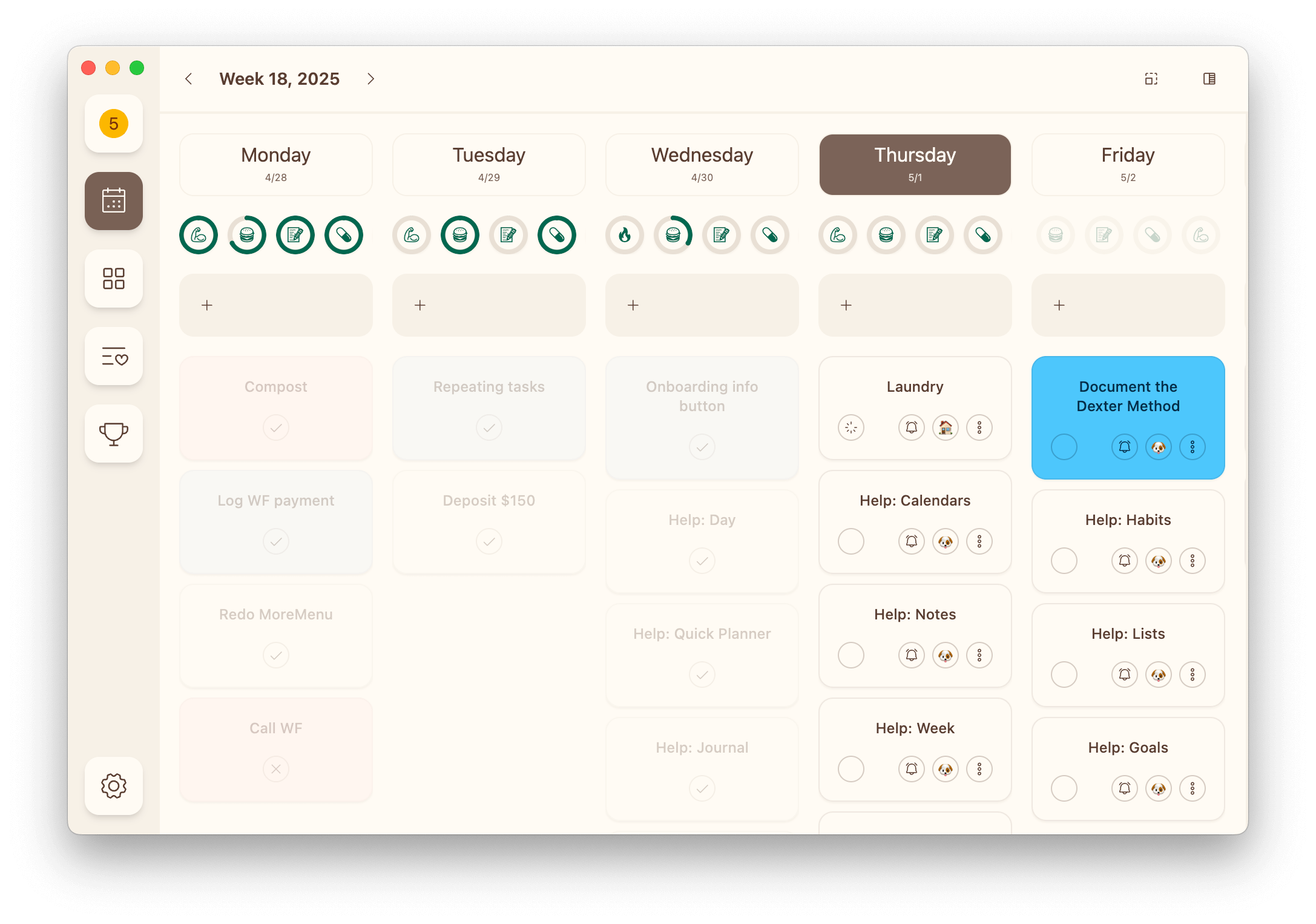
The week view in Dexter allows you to see and plan the week ahead of you.
Toolbar
The toolbar enables quick navigation and access to tools without leaving the week view.

- Week number: Click on the week number to come back to the current week
- Arrows: Use the arrows to navigate forward and backwards one week at a time
- Card size: Toggle this size of task cards
- Quick Planner: Toggle the quick planner
- Calendar: Show each day's events (appears when the calendar is enabled)
Tasks
The week view will show only the tasks scheduled for this week (or the week you choose).
To add a new task to a day, click the + input above the task list and start typing. When done, press enter and the task will be created.
To add an existing task to a day, drag it out of the quick planner and drop it on that day. Drag a task from one day to another to move it, or back onto the quick planner to unschedule it.
You can also use the button on a quick planner row, which schedules that task for the highlighted day — handy on a narrower screen, where the day you want may be scrolled out of view.
Habits
The week view includes a simple habit tracker you can configure in settings.
Tap on a habit to track progress or mark it as complete.
Calendar
Toggle the calendar in the toolbar to list each day's events between its habits and its tasks, so you can see which days are already busy as you plan.
Quick Planner
The quick planner is one of the most powerful Dexter features.
Look through all your tasks as you plan your week with easy access to filtering, grouping, and searching.
- Want to find all the tasks that you didn't finish last week? Easy.
- Want to find all the tasks remaining for that big project? Easy.
- Want to find all the tasks you've been saving for a rainy day? Easy.
The most relevant items automatically bubble to the top of the quick planner based on priority, due date, and status.